Showing posts with label svci 2020. Show all posts

Sunday, 13 March 2022

Solved: SVCI 2020 “Spawn app failed: 5” Installation Error

Problem: I was not able to run SVCI 2020 software after installation. There seems to be something wrong in driver. It’s said “Spawn app failed: 5”.

“Firmware or database file open failed.”

“Connection error: interface not connected. If you have already connected the interface, please try to reconnect it and restart the application.”


What’s the problem, give me an idea?

solved-svci-2020-spawn-app-failed-5-installation-error-1

solved-svci-2020-spawn-app-failed-5-installation-error-2

solved-svci-2020-spawn-app-failed-5-installation-error-3

Solution

The reason why caused the issue is because SVCI Software files were deleted by firewall or antivirus program during installation. Reinstall or change a PC to install can solve the problem. Remember to stop firewall & antivirus software before SVCI installation to avoid it.


Follow the fixed methods to solve problem:

1.Update Driver

Computer management >> Device Manager >> Universal Serial Bus Controllers >> USB Serial Converter A >> Driver >> Update Driver >> Browse my computer for drivers >> Let me pick from a list of available drivers on my computer >> USB serial Converter A version: 2.8.24.0 [10/04/2012]

solved-svci-2020-spawn-app-failed-5-installation-error-4

solved-svci-2020-spawn-app-failed-5-installation-error-5

solved-svci-2020-spawn-app-failed-5-installation-error-6

solved-svci-2020-spawn-app-failed-5-installation-error-7

solved-svci-2020-spawn-app-failed-5-installation-error-8


USB Serial Converter B >> Driver >> Update Driver >> Browse my computer for drivers >> Let me pick from a list of available drivers on my computer >> USB serial Converter A version: 2.8.24.0 [10/04/2012]

solved-svci-2020-spawn-app-failed-5-installation-error-9


Ports (COM & LPT) >> USB Serial Port (COM9) >> Driver >> Update Driver >> Browse my computer for drivers >> Let me pick from a list of available drivers on my computer >> USB serial Converter A version: 2.8.24.0 [10/04/2012]


Ports (COM & LPT) >> USB Serial Port (COM10) >> Driver >> Update Driver >> Browse my computer for drivers >> Let me pick from a list of available drivers on my computer >> USB serial Converter A version: 2.8.24.0 [10/04/2012]

solved-svci-2020-spawn-app-failed-5-installation-error-10


2.Update Firmware

ABRITES QUICK START >> Click “Yes” to allow the app

solved-svci-2020-spawn-app-failed-5-installation-error-11

Start SVCI 2020 downloader >> Update Firmware >> Start(default option: Firmware 2)

Wait until download finished.

Selected “Firmware 1 >> Start”.

Wait until downloading finished.

Wait connecting to device...

Done.

solved-svci-2020-spawn-app-failed-5-installation-error-12

solved-svci-2020-spawn-app-failed-5-installation-error-13

solved-svci-2020-spawn-app-failed-5-installation-error-14


SVCI 2020 can normally work now.

* All vehicle software are workable except VW AUDI V38.1.


Read also

How to update SVCI 2020 Firmware?

http://blog.obd2shop.co.uk/how-to-update-svci-2020-abrite-commander-firmware/


Technical support:

www.obd2shop.co.uk


Tuesday, 15 February 2022

Fixed: SVCI 2020 Registry Value RxFIFO or TxFIFO Have Wrong Data!

Problem

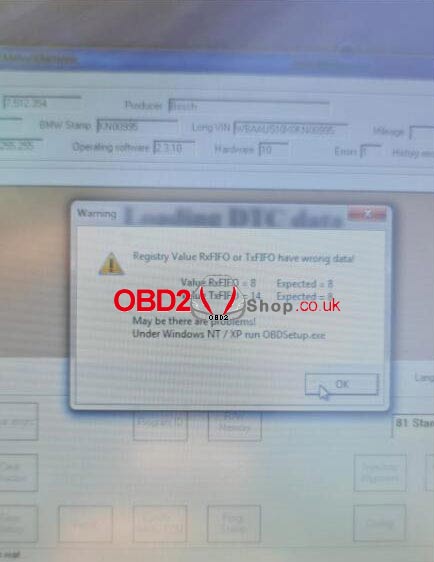
The SVCI 2020 is failed to communicate with a new BMW E46 2001 GEN that has been replaced recently. The warning “Registry value RxFIFO or TxFIFO have wrong data! May be there are problems! Under Windows NT/XP run OBDSetup.exe.” keeps coming out.


I’ve tried several times but was unable to clear the error. Any ideas?

fixed-svci-2020-registry-value-rxfifo-or-txfifo-have-wrong-data-(1)

fixed-svci-2020-registry-value-rxfifo-or-txfifo-have-wrong-data-(2)

Solution

Please follow the steps below, then re-connect device to read fault codes again.

Step1. Open the SVCI 2020 installation directory.

Step2. Enter “C: Program File (x86)\Abrites Commander Software List\Common2\” directory and copy BMW folder to “C: Program Files (x86)\Abrites Commander Software List\Common\” directory


Hope this is helpful.

www.obd2shop.co.uk


Tuesday, 25 January 2022

Problem

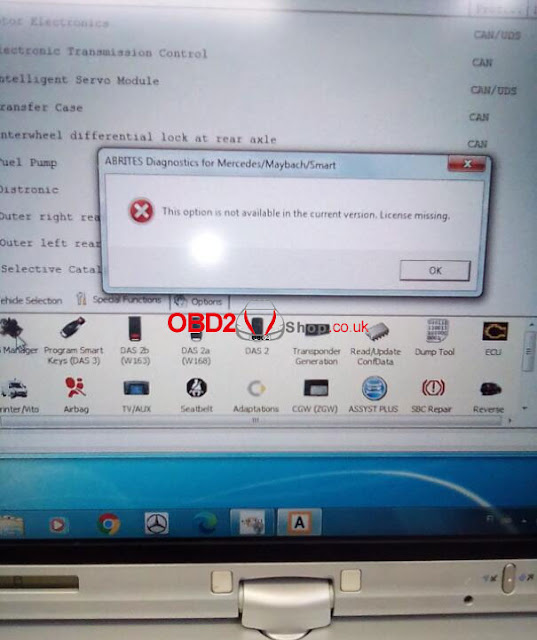
Each time when I was opening SVCI 2020 software to start DAS manager, it always came out a warning: “This option is not available in the current version. License missing”. Any ideas? Please help.

free-download-svci-2020-v12-to-solve-license-missing-warning

Solution

The reason why this warning coming out is because of the incorrect SVCI version. Please download SVCI 2020 V12.0 version, then update firmware.


Free download SVCI 2020 V12.0

https://mega.nz/file/Z8hGjQDK#bRwvtu0kROC0l2YP051lN_Lbqozu34tEYt8DiRu6nQs


This may help:

How to update SVCI 2020 Abrite Commander firmware?

http://blog.obd2shop.co.uk/how-to-update-svci-2020-abrite-commander-firmware/


Update

Thanks to Obd2shop engineer, problem was solved.